Build an AI-Powered Legal Document Summarizer (For Small Businesses) using Python!
A complete guide with code to build your own AI Legal Document Summarizer using Python
9 min readKrishan Walia
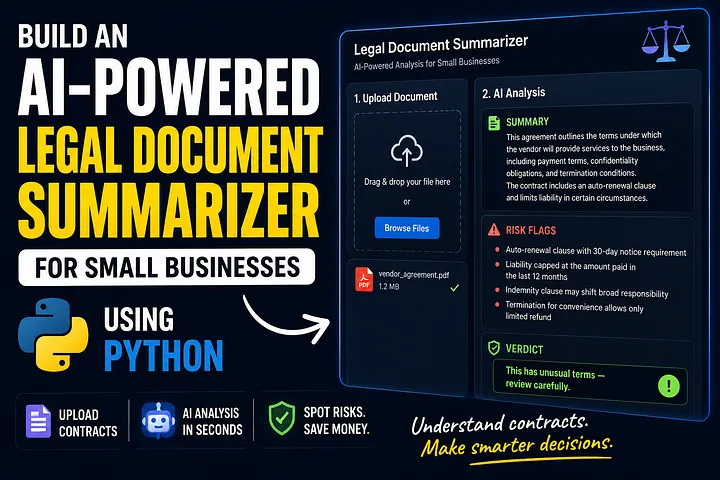
Most small business owners sign contracts they don’t fully understand.
Not because they’re careless or inexperienced, but because legal language is deliberately complicated, and lawyers are damn expensive.
A 40-page vendor agreement should not require a law degree to read!
Problem found -> let’s solve!
And through this article, you can learn to build a tool that fixes this. Today, in Python, without a legal background, without a massive team.
A tool that reads a contract, explains it in plain English, and flags the parts that could hurt the person.
And that’s what this tutorial is about! And, huh, even if you don't have any experience working with AI, you can go through this article — I have made this for you!
By the end, you’ll have built an AI-powered legal document summarizer. A real project! Something you can show, use, and improve.
So, let’s get started.
What YOU’re Building🧰
A tool where a user uploads a contract (PDF or plain text), and the AI returns:
- A plain-English summary of key clauses - Flagged risk areas (auto-renewal traps, liability caps, penalty clauses, etc.) - A simple verdict: “This looks standard”**** or “This has unusual terms — review carefully”
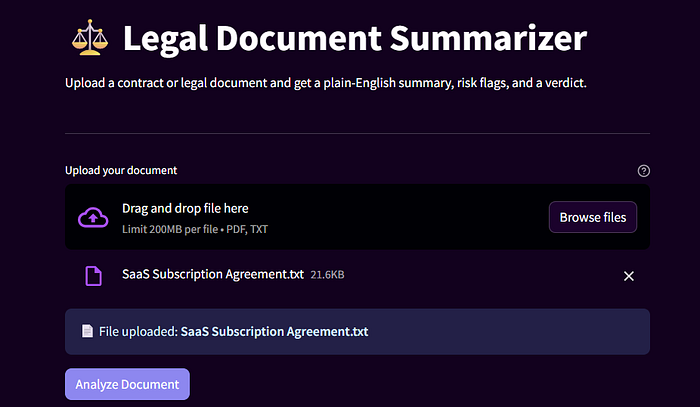
This isn’t a toy. This is the kind of tool that saves money for business owners.
What You Need Before Starting
You don’t need to be an expert. You need: — - Python 3.8+ installed - Basic familiarity with Python (at least you’ve written a function before) - An API key — either from Anthropic (Claude) or OpenRouter (free tier) - 2–3 hours
That’s it.
Quick note on API keys: This tutorial gives you two paths. The primary path uses Claude via Anthropic’s API. — (paid one). The alternative path uses OpenRouter’s free tier — no credit card, no cost, good enough to build and test the full project.
Both produce the same result! Pick the one that fits.
Project Structure
Here’s how the project is organised before we write a single line of code:
legal-summarizer/
│
├── app.py # Streamlit frontend
├── parser.py # PDF/text extraction logic
├── summarizer.py # Claude API integration
├── prompts.py # All prompt templates
├── requirements.txt # Dependencies
└── .env # API keys (never commit this)
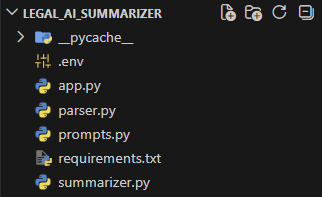
Screenshot of Project Structure
Simple. Clean. Each file does one job.
Step 1: Set Up Your Environment
Open your terminal. Create a project folder and set up a virtual environment:
mkdir legal-summarizer
cd legal-summarizer
python -m venv venv
source venv/bin/activate # On Windows: venv\Scripts\activate
Now install the dependencies:
pip install streamlit pdfplumber anthropic openai python-dotenv
What each package does:
- streamlit — builds the web interface without writing HTML or CSS
- pdfplumber — extracts text from PDF files accurately
- anthropic— the official Python SDK for Claude
- openai — used to talk to OpenRouter (OpenRouter is OpenAI-compatible, so this SDK works for both)
- python-dotenv — loads your API key from a .env file securely
If you’re using the Claude (Anthropic) path, create your .env file like this:
AI_PROVIDER=anthropic
ANTHROPIC_API_KEY=your_anthropic_key_here
If you’re using the OpenRouter path, create it like this:
AI_PROVIDER=openrouter
OPENROUTER_API_KEY=your_openrouter_key_here
To get your free OpenRouter API key: go to https://openrouter.ai, create an account (no credit card needed), and copy your key from the dashboard. That’s it.
Important: Add
.envto your.gitignore. Never push API keys to GitHub.
Step 2: Build the Document Parser
This is the first real piece. The parser reads whatever document the user uploads and converts it into raw text that the AI can process.
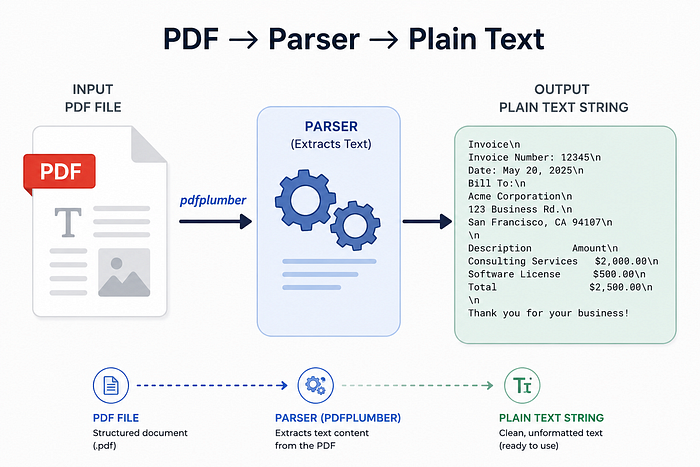
Create parser.py:
# parser.py

import pdfplumber
import io

def extract_text_from_pdf(file_bytes: bytes) -> str:
 “””Extract all text from a PDF file given its bytes.”””
 text = “”
 with pdfplumber.open(io.BytesIO(file_bytes)) as pdf:
 for page in pdf.pages:
 page_text = page.extract_text()
 if page_text:
 text += page_text + “\n”
 return text.strip()

def extract_text_from_txt(file_bytes: bytes) -> str:
 “””Decode a plain text file.”””
 return file_bytes.decode(“utf-8”).strip()

def parse_document(file_bytes: bytes, file_type: str) -> str:
 “””Route the file to the correct parser based on type.”””
 if file_type == “application/pdf”:
 return extract_text_from_pdf(file_bytes)
 elif file_type == “text/plain”:
 return extract_text_from_txt(file_bytes)
 else:
 raise ValueError(f”Unsupported file type: {file_type}”)
What’s happening here:
- extract_text_from_pdf opens the PDF in memory using io.BytesIO — no need to save the file to disk. It loops through every page, extracts the text, and stitches it together.
- extract_text_from_txt simply decodes the bytes into a UTF-8 string.
- parse_document is the routing function. It checks what type of file was uploaded and calls the right extractor. This keeps the logic clean and easy to extend later (DOCX support? Add one more elif).
Step 3: Write the Prompt
This is the most important step. Most people underestimate how much the quality of the prompt determines the quality of the output.
A vague prompt gives you a vague summary. A specific, structured prompt gives you something way more useful.
Create prompts.py:
# prompts.py

LEGAL_ANALYSIS_PROMPT = “””
You are a legal document analyst helping small business owners understand contracts.

The user has uploaded a legal document. Your job is to:

1. SUMMARY: Write a plain-English summary of the key clauses (max 200 words).
 Avoid legal jargon. Assume the reader has no legal background.

2. RISK FLAGS: Identify any clauses that could be risky for the business owner.
 Look specifically for:
 — Auto-renewal clauses (contracts that renew automatically)
 — Liability caps (limits on what you can claim if something goes wrong)
 — Penalty clauses (fees for early termination or non-performance)
 — Exclusivity clauses (restrictions on working with competitors)
 — Indemnification clauses (where you agree to cover another party’s legal costs)
 — Unusual payment terms or hidden fees

For each flag, explain WHY it is a risk in simple terms.

3. VERDICT: Give a one-line verdict:
 — “This looks standard.” (if the document contains typical, expected clauses)
 — “This has unusual terms — review carefully.” (if anything stands out)
 — “This contains high-risk clauses — consult a lawyer.” (if serious risks exist)

Format your response exactly like this:

##Summary
[Your summary here]

## Risk Flags
[List each risk with a short explanation. If none, say “No significant risks identified.”]

##Verdict
[Your one-line verdict]

DOCUMENT:
{document_text}
“””

def build_prompt(document_text: str) -> str:
 “””Insert the document text into the prompt template.”””
 # Limit to ~12,000 characters to stay within token limits
 truncated_text = document_text[:12000]
 return LEGAL_ANALYSIS_PROMPT.format(document_text=truncated_text)
What’s happening here:
- The prompt gives
ClaudeorOpenRoutera specific role (“you are a legal document analyst”). This is called role-prompting, which primes the model to respond from a particular perspective. - The numbered instructions act as a structured task list. The model follows a structure reliably when it’s clearly laid out.
- The Risk Flags section gives explicit examples (auto-renewal, liability caps, etc.). Specific examples produce more accurate output than vague instructions.
- The Verdict section provides three fixed options. This prevents the model from giving wishy-washy non-answers.
- The truncation at 12,000 characters is a practical safeguard. Very long contracts can exceed the token limit; this keeps the tool stable.
Step 4: Connect to the AI — Claude or OpenRouter
This is where the two paths split. Instead of writing two separate files, we write one summarizer.py that checks your .env file and routes to the right provider automatically.
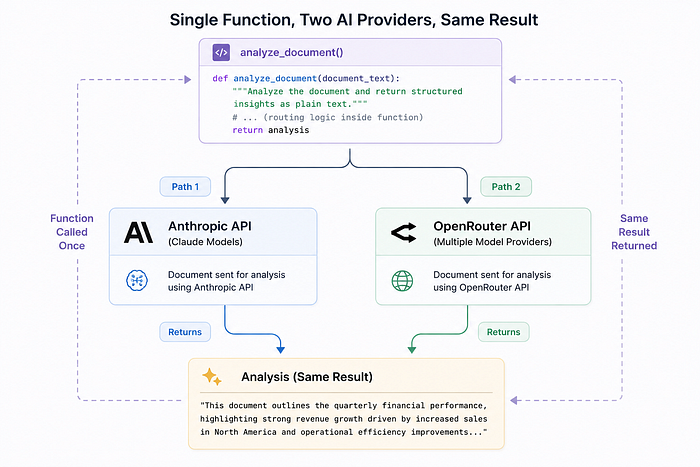
Create summarizer.py:
# summarizer.py

import os
import anthropic
from openai import OpenAI
from dotenv import load_dotenv
from prompts import build_prompt

load_dotenv()

PROVIDER = os.getenv(“AI_PROVIDER”, “anthropic”).lower()

def _analyze_with_anthropic(prompt: str) -> str:
 “””Use Claude via the Anthropic SDK.”””
 client = anthropic.Anthropic(api_key=os.getenv(“ANTHROPIC_API_KEY”))
 message = client.messages.create(
 model=”claude-opus-4–5",
 max_tokens=1500,
 messages=[{“role”: “user”, “content”: prompt}]
 )
 return message.content[0].text

def _analyze_with_openrouter(prompt: str) -> str:
 “””Use OpenRouter’s free tier via the OpenAI-compatible SDK.”””
 client = OpenAI(
 api_key=os.getenv(“OPENROUTER_API_KEY”),
 base_url=”https://openrouter.ai/api/v1",
 )
 response = client.chat.completions.create(
 model=”openrouter/free”, # Auto-picks from available free models
 max_tokens=1500,
 messages=[{“role”: “user”, “content”: prompt}]
 )
 return response.choices[0].message.content

def analyze_document(document_text: str) -> str:
 “””Extract text, build the prompt, and send to the configured provider.”””
if not document_text or len(document_text.strip()) < 50:
 return “The document appears to be empty or too short to analyze.”
prompt = build_prompt(document_text)
if PROVIDER == “openrouter”:
 return _analyze_with_openrouter(prompt)
 else:
 return _analyze_with_anthropic(prompt)
What’s happening here:
PROVIDERreads theAI_PROVIDERvalue from your.env. If it says”openrouter”, it routes to OpenRouter. Anything else defaults to Anthropic. One environment variable controls the whole switch._analyze_with_anthropicuses the official Anthropic SDK. It sends the prompt toclaude-opus-4–5and extracts the text from the response object._analyze_with_openrouteruses theopenaiSDK — but with one key difference:base_urlis pointed at OpenRouter instead of OpenAI. OpenRouter built their API to be OpenAI-compatible specifically so you can do this.- The model string
”openrouter/free”tells OpenRouter to automatically pick from whichever free models are available at that moment. analyze_documentis the single public function thatapp.pycalls. It doesn’t need to know which provider is in use — it just calls this function and gets text back.
About openrouter/free: This is OpenRouter’s smart router. It automatically selects a capable free model and currently, that pool includes models like Meta’s Llama 3.3 70B, DeepSeek R1, Mistral Small, and others.
The model available may vary day to day, but they’re all capable enough for this task.
If you want to pin a specific model (say, always use Llama), just replace ”openrouter/free” with a model string like ”meta-llama/llama-3.3–70b-instruct:free”.
Step 5: Build the Interface with Streamlit
This is where the tool becomes something you can actually use.
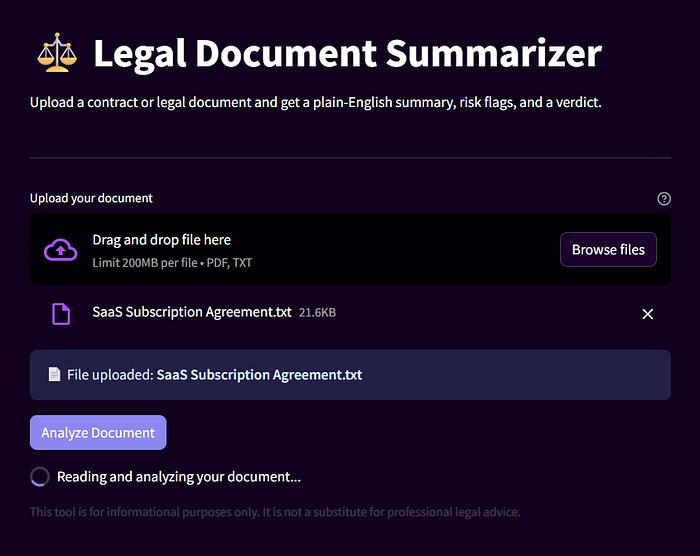
Create app.py:
# app.py

import streamlit as st
from parser import parse_document
from summarizer import analyze_document

# — — Page Configuration — -
st.set_page_config(
 page_title="Legal Doc Summarizer",
 page_icon="⚖️",
 layout=”centered”
)

# — — Header — -
st.title("⚖️ Legal Document Summarizer")
st.markdown(
 "Upload a contract or legal document. "
 "Get a plain-English summary, risk flags, and a verdict — instantly."
)
st.divider()

# — — File Upload — -
uploaded_file = st.file_uploader(
 "Upload your document",
 type=["pdf", "txt"],
 help="Supports PDF and plain text files."
)

# — — Analysis — -
if uploaded_file is not None:
 st.info(f"📄 File uploaded: **{uploaded_file.name}**")
 if st.button("Analyze Document", type="primary"):
 with st.spinner("Reading and analyzing your document…"):
 try:

 # Step 1: Extract text
 file_bytes = uploaded_file.read()
 document_text = parse_document(file_bytes, uploaded_file.type)

# Step 2: Analyze with AI
 analysis = analyze_document(document_text)

 # Step 3: Display results
 st.success(“Analysis complete!”)
 st.markdown("---")
 st.markdown(' ')
 st.markdown(analysis)
 except ValueError as e:
 st.error(f"File error: {e}")
 except Exception as e:
 st.error(f"Something went wrong: {e}")

# — — Footer — -
st.divider()
st.caption(
 "This tool is for informational purposes only. "
 "It is not a substitute for professional legal advice."
)
What’s happening here:
st.set_page_configsets the browser tab title and icon — small details that make the tool feel finished.st.file_uploaderrenders a drag-and-drop upload box and restricts it to PDF and TXT files. Thetypeparameter does the validation for you.- The
if uploaded_file is not Noneblock only runs when a file has actually been uploaded. This prevents the app from crashing on load. st.spinnergives the user visual feedback while the API call runs — important because analysis takes 5–15 seconds.- The
try/exceptblock catches errors cleanly. AValueErrormeans something went wrong with the file parsing. A genericExceptioncatches unexpected API errors. Either way, the user sees a readable message instead of a raw Python traceback. st.markdown(analysis)renders the AI’s response with full Markdown formatting — the headers (## Summary,## Risk Flags,## Verdict) will display beautifully.
Step 6: Run It
bash
streamlit run app.py
Your browser will open automatically at http://localhost:8501.
Upload a contract PDF. (You can get the sample legal document, here.) Click “Analyze Document”. Watch it work.
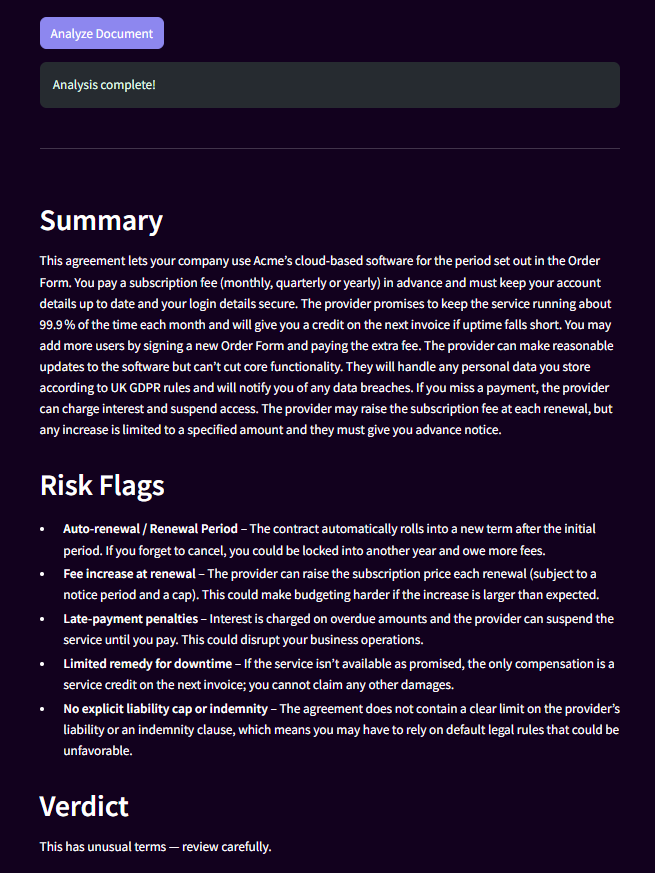
What the Output Looks Like
Here’s an example of what the tool produces for a standard vendor agreement:
## Summary
This is a 12-month service agreement between a vendor and your business.
The vendor will provide software access and support. You pay $499/month.
The contract starts on the date you sign and automatically continues unless
you cancel in writing 30 days before the renewal date.

## Risk Flags

- Auto-renewal clause (Section 4.2): This contract renews automatically
 every 12 months. If you forget to cancel 30 days before the end date,
 you’re locked in for another year. Set a calendar reminder.

- Liability cap (Section 8.1): The vendor’s liability is capped at one
 month’s fees ($499). If their software causes significant business losses,
 you cannot recover more than $499.

- Indemnification (Section 9): You agree to cover the vendor’s legal
 costs if a third party sues them over your use of the software. This is
 broader than usual.

## Verdict
This has unusual terms — review carefully.
That’s readable. That’s useful. And it takes just 10 seconds!
Making It Privacy-First
Right now, the tool is stateless. Nothing is stored. The document text is sent to the API, analyzed, and discarded. No database. No logs.
For an MVP aimed at small businesses handling sensitive contracts, this is the right call. You can say clearly: ”Your documents are never stored!”
If you want to be extra cautious, add a visible notice in the UI:
python
st.warning(
 “🔒 Privacy notice: Your document is sent to the AI for analysis and is not stored anywhere.”
)
Trust is hard to build and easy to lose. Be upfront about it.
A Note on OpenRouter Rate Limits
If you’re on the free tier, there’s one thing to plan around.
OpenRouter’s free tier allows 20 requests per minute and 200 requests per day. For personal use or testing, that’s more than enough. For a tool you’re sharing with multiple people, you’ll hit the ceiling faster than you expect.
Here’s how to handle it gracefully in summarizer.py:
def _analyze_with_openrouter(prompt: str) -> str:
 """Use OpenRouter’s free tier via the OpenAI-compatible SDK."""
 client = OpenAI(
 api_key=os.getenv("OPENROUTER_API_KEY"),
 base_url="https://openrouter.ai/api/v1",
 )
 try:
 response = client.chat.completions.create(
 model="openrouter/free",
 max_tokens=1500,
 messages=[{"role": "user", "content": prompt}]
 )
 return response.choices[0].message.content
 except Exception as e:
 if "429" in str(e):
 return (
 "Rate limit reached on the free tier. "
 "Please wait a minute and try again, or upgrade your OpenRouter plan."
 )
 raise
What’s happening here: The try/except catches the 429 error code that OpenRouter returns when you’ve hit the limit. Instead of crashing with a Python traceback, the user sees a plain message. Small addition — but it’s the difference between a polished tool and a broken one.
When you’re ready to move past the free tier, adding credits to your OpenRouter account unlocks higher limits without changing a single line of code.
Where to Take This Next
You’ve built the core. Here’s where it gets interesting:
- Add a clause-by-clause breakdown. Instead of summarising the whole document, ask the AI to extract each numbered clause and explain it individually.
- Add comparison mode. Let users upload two versions of a contract and highlight what changed. Useful for negotiations.
- Add export to PDF. Use
reportlaborfpdfto let users download the analysis as a clean report. - Add support for DOCX files. Use
python-docxto parse Word documents. One moreelifinparser.py. - Enhance the UI. Experiment with the huge library of
streamlitand build something more beautiful and eyecatchy than what I built! - Deploy it. Streamlit Community Cloud is free and takes 5 minutes to deploy. Your small business friends can start using this today.
What You Actually Built
Step back for a second.
You built a tool that reads a legal document, understands it, and explains it in plain English. You did that without a legal background, without a data science degree, without a team.
That’s what AI-powered building looks like right now.
The gap between “I have an idea” and “I have a working tool” has never been smaller. Most people don’t cross it because they wait until they feel ready. YOU crossed it by building!
One more thing: this project is a genuine portfolio piece. Not a tutorial clone. Not a “hello world” wrapped in an API call. This solves a real problem for real people.
Put it on GitHub. Write about what you learned. The next time someone asks what you’ve built, you have an answer.
Today’s Inspiration💫
Knowing is not enough; we must apply. Willing is not enough; we must do. By — Johann Wolfgang von Goethe
Author’s Note ✒️
Hey, thanks for reading through this. If something in the tutorial didn’t make sense, or if you built it and ran into an issue… I’d genuinely like to know. Drop a comment or reach out — feedback helps me improve the next one too. Now go build it!
More in artificial-intelligence




Cubed
Write about the technologies shaping the future.
For developers, founders, and curious minds exploring AI, crypto, Web3, and emerging tech—signal over noise.
One free account across In Plain English, Stackademic, Venture, and Cubed.
How it works- AI, crypto & Web3
- Software & emerging technologies
- Analysis & practical resources
- Thoughtful voices, not hype
Sign in
Google or GitHub
Complete profile
Takes a few minutes
Get approved & publish
Start sharing
Why write for Cubed?
The future deserves thoughtful voices, not just louder headlines.


Comments
Loading comments…